Showing posts with label Integrations. Show all posts

Sunday, December 12, 2010

External Data Base Connection


The intent of this article is to explain how an external DDBB can be integrated within Siebel technology, in order to enable to display external information that an end-user needs.

The following basic construct provides detailed explanations on how to implement each of steps.

1. Using the Siebel Tools, locate “File > New Object > External Table Schema Import” and create a new record.
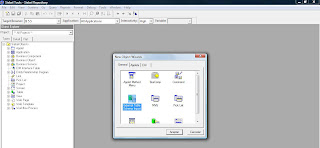


2. During the process, it’s required to specify a file that contents the Table/View definition, such as:


“Create or replace vew user.view_name as
SELECT XXX
FROM XXX
WHERE XXX”
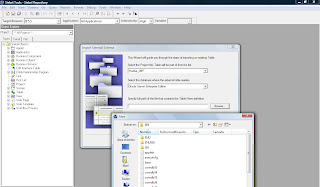


3. Once external table is created within Siebel, using the Siebel Tools Object Explorer, locat the Table Object and verify the following properties:
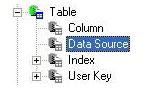
3.1 Select the Data Source object of newly created table.

3.2 Create a new record in Data Source List Applet.

3.3 Provide the name of data source that you will use to connect this table.


3.4 Select the column object of this table and query for row_id in Alias Field.In System Field Mapping select the Id value from dropdown.
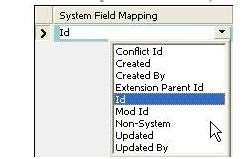


3.6 After mapping your field should appear like this:

4. Now you will give each column a meaningful name within a Business Component.
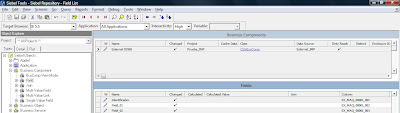


Notice that finally, it’s required to configure your local client .cfg, such as (review the settings and modify as needed for your environment):


[…]
[DataSources]
[…]
External_JMP = External_JMP

[External_JMP]
Docked = TRUE
ConnectString = (DESCRIPTION = (ADDRESS = (PROTOCOL = TCP)(HOST = XX.XXX.XXX.XXX)(PORT = XXXX)) (CONNECT_DATA = (SERVER = DEDICATED) (SERVICE_NAME = X)))
SqlStyle = OracleCBO
DLL = sscdo90.dll
DSUsername = XXX
DSPassword = XXX
TableOwner = XXX

Now that you have finished configuring the connection, you will validate it for correctness.

Hope it helps!
Best wishes.
Joan Martí.


Thursday, April 8, 2010

Implementation of an error control in a Workflow

It’s well known that a workflow requires an error control for a robust process design. The next diagram shows an overview of the proposed error control:


As it’s shown, an error control provided a consistent tool , not only providing a log but also inform user about a problem in real-time by mail.
The following section contains the minimum settings required :

  • Step: Write to log

Using the Business Service EAI File Transport (Method: Send), it’s created a log which includes parameters in order to analyze any trouble detected.


Argument :Type :Value :IN/OUT :
ValueExpression"Step which an error is detected: "+[&Step]+
"Variables: "+[&Error Code] +[…]
IN
AppendToFile LiteraltrueIN
FileNameExpression[&Dir]+"\ErrorWorkflow_N”+ tochar(today(),"DDMMYY")+".log”IN


  • Step: Send a mail


This step send a mail to specific list detailed, using method “SendMessage” from BS “Outbound Communications Manager”.

Input Argument:Type :Value :
CommProfileLiteralUser
MsgHTMLBodyExpression(expression detailed below )
MsgSubjectLiteralWfw Example failed
MsgToListLiteralmail@address.x
ProcessModeLiteralRemote


Where MsgHTMLBody also includes parameters that permit an end-user to detect any trouble:


start tag P Workflow Execution Error

start tag TABLE
start tag TR

start tag TD Step :end tag TD
start tag TD "+[&Step]+"end tag TD
start tag TD Error : end tag TD
start tag TD "+[&Error]+" end tag TD
end tag TR
end tag TABLE


end tag P


Friday, March 12, 2010

Import Object

Siebel provides an useful way to load data in Siebel Application, that allows end-users to load small quantity of data into Siebel (my own experience in using Import Object: load data for identify a set of holiday dates, description of new products,...).

Technical development:

1. You need a Business Object where the Business Component for import is Primary for the Business Object.

2. A view based on the Business Object mentioned should include the list applet (Import Objects are available in list applet only) where import needs to be done.

3. Navigate to “Import Object” in Siebel Tools. Create a new record for an Import Object. Specify the Business Component name and Project.

4. Once “Import Object” is created in Siebel Tools (specifying the Business Component Name and Project), it’s required to configure also its child Objects:

a. Import Field: Create new records in order to add the Fields of the Business Component in which you need to import the data.
b. Import Key Field: Create a combination of Key similar to user key that can help to uniquely identify the data for import.
c. Import Source: Define the type of source file for Import (ECCO 3.0). It’s required:

c.1. “Import Field Map” : Import Fields
c.2. ‘Import Field Columns’: Header name of corresponding column in the source Import file .


End-User application:

In order to import data, you need a data file for load, which requires:

• Headers for the data columns must be specified.
• Each value should be delimited by TAB.


If Menu-Button of the list applet is pressed, ‘Import’ is available, as it’s shown avobe:


Weather the option ‘Import’ is pressed, then you will see a Browser Choise screen appear, such as:


Once the load is done, status report is available as shown above:


Thursday, March 11, 2010

Different ways to integrate to third party applications with Siebel.

In order to integrate Siebel with external application, what I can share, from my own experience, is that there are two options that can be easily carried out without any problem:

Option A: Using synchronous workflow that retrieve xml file that contains process information.

You should create integration objects within the Siebel repository to provide the definition of the mapping between the fields in the xml and Siebel.

Add a Sub Process step to invoke an EAI XML Converter(using this integration object created as a Input Argument – IntObjectName)
Business Service Name: EAI XML Converter
Business Service Method: XMLDocToIntObjHier

In Addition, add another Sub Process step to invoke an EAI Siebel Adapter Upsert (When a Workflow Process has a Business Object then a Siebel Operation Upsert step defined will upsert the record in the Primary Buisiness Component.)
Business Service Name: EAI Siebel Adapter
Business Service Method: Upsert

(*) For queues we need an external system/middleware.


Option B: Data load via EIM

EIM batch jobs are used for bulk data load. EIM are background batch jobs (not real time jobs).

In this case it's required:

1. Previous Thread : PL/SQL can be used in order to delete previous records in EIM table.

delete from siebel.eim_EXAMPLE
where if_row_batch_num = LOT_NUMBER;


2. Preparing the EIM Tables : This section provides assistance in loading the EIM tables with data used to control insertion of rows from Siebel base tables.

insert into siebel.eim_EXAMPLE (
row_id,
/* This value in combination with the nonempty contents of if_row_batch_num must yield a unique value. */
if_row_batch_num,
/* Set this to an identifying number for all EIM table rows to be processed as a batch.*/
if_row_stat,
/* In each row to be deleted, set this column to FOR_INSERT to indicate that the row has not been inserted. */
[…]
/*Add Required Fields to be informed*/
);

3. Finally, execute EIM through Server Manager, using a sentence such as:

set ExecuteEIM ="Run task for component EIM with config=C:\sea704\EXAMPLE.ifb"

%SRVRMGR%srvrmgr /g %SERVER% /e % SERVER % /u %USER% /p %PASSWORD% /s %EIMSERVER% /c %ExecuteEIM% /o %BASE%\Log.LOG